
Use the private network IP address 192.168.0.1 as the default gateway for routers from Netgear, D-Link, and TP-Link to access their admin dashboards to change Wi-Fi passwords, secure networks, or configure parental controls.
192.168.0.1 IP Address
192.168.0.1 IP address is a private IP address widely used as the default gateway for many home and office routers. It serves as the access point to the router’s web-based administration panel, which allows you to configure and manage its network settings. Many router brands, including D-Link, Netgear, TP-Link, Tenda, and others use 192.168.0.1 as their default login address.
By entering http://192.168.0.1 into a web browser you can access the router dashboard to change the Wi-Fi name (SSID), update the Wi-Fi password, configure wireless security, manage connected devices, enable guest networks, set parental controls, update router firmware, and troubleshoot internet connection issues.
Properly managing your router through 192.168.0.1 helps you to improve network security, optimize Wi-Fi performance, and maintain a reliable internet connection for both home and office environments.
How to Connect to a Broadband Network?
First of all you have to connect your broadband modem to the router through the use of an ordinary Cat-5 Ethernet cable by connecting the DSL or cable modem to the router port marked either as Internet or WAN.
Next, it will be required to take another Ethernet cable and plug your computer to the LAN port of the router. If the router has a built-in wireless network adapter. It will be possible to connect to the Wi-Fi via your iPhone or almost any other mobile device.
How to Log into Router Using 192.168.0.1?
- Connect your computer, smartphone, or tablet to the router using Wi-Fi or an Ethernet cable.
- Open a web browser such as Chrome, Firefox, Edge, or Safari.
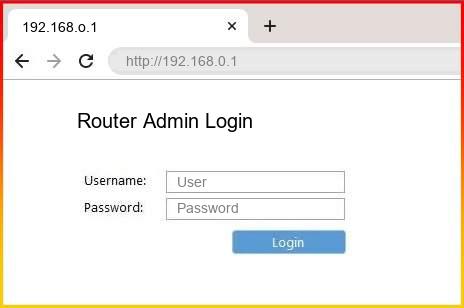
- Type http://192.168.0.1 into the browser’s address bar and press Enter.
- Wait for the router login page to load.
- Enter your router’s administrator username and password.
- Click the Login or Sign In button to access the router dashboard.
- After logging in, you can change your Wi-Fi name and password, manage connected devices, configure security settings, update firmware, set up guest networks, enable parental controls, and customize other network options.
How to change the default Router IP address?
There are many reasons for changing the default IP address of my Router. In order to do so,
- TP-Link: Log into web Interface > Advance > Network > LAN > Alter as desired at IP Address field > Save Settings.
- D-Link: Log in to admin console > Setup Tab > Network Settings > Router Settings > Router IP Address > Save Settings.
- Netgear: Log in to NetGear Genie > Advance > Setup > LAN Setup > LAN TCP/IP Setup > IP Address > Apply Changes.
After altering the gateway IP address, my router will reset automatically to store the changes made.
FAQs
Simply key in 192.168.0.1 in your browser’s address box, Enter your user name and password and press OK or LOGIN.
Some of the common default usernames and passwords to login into 192.168.0.1 are – username: admin, password: admin
Some of the common default usernames and passwords of 192.168.0.1 are – username: admin, password: admin
The IP address 192.168.0.1 is a default one. All the IP addresses consist of four groups of numbers that range from 0 to 255. It is necessary since every device used to access the Internet should have its own unique address. Therefore, the first three groups are network id, while the fourth one is device id. As for 192.168.0.1, its network id is 192 and device id is 168.0.1.